

Many developers see an address like 172.17.1.10.8090 while working with Docker, local servers, internal dashboards, or network services, but the format can be confusing. A wrong separator, an unreachable private address, or a closed port can quickly turn a simple connection into a troubleshooting task. This guide explains what the address means, how to test it, when it works, and what to check when your browser or terminal cannot connect.
What Does 172.17.1.10.8090 Mean?
At first glance, 172.17.1.10.8090 looks like one long network address. In practice, it is usually intended to represent two separate values: the IPv4 address 172.17.1.10 and the TCP port 8090.
The standard way to write an IPv4 address with a TCP port is 172.17.1.10:8090, not 172.17.1.10.8090. The dot belongs to the IPv4 address, while the colon separates the host address from the port.
This distinction matters when you enter an address into a browser, API client, command-line tool, reverse proxy, firewall rule, or application configuration.
Is 172.17.1.10 a Private IP Address?
Yes. The address 172.17.1.10 falls inside the RFC 1918 private IPv4 range of 172.16.0.0 through 172.31.255.255. Private addresses are intended for internal networks and are not globally routable on the public Internet. That means a public visitor normally cannot open 172.17.1.10 directly from the Internet.
For many users, this is the first major clue about 172.17.1.10.8090. If it belongs to an internal application, the device trying to connect must normally have a valid route to that private network.
Why Does 172.17.1.10 Often Appear in Docker?
Docker is an important reason developers encounter 172.17.x.x addresses. Docker automatically allocates subnets for user-created networks, and its built-in default address pools include 172.17.0.0/16, 172.18.0.0/16, and other private ranges. A running container can therefore receive an internal address in the 172.17.x.x family.
That makes 172.17.1.10.8090 especially relevant when a web interface, API, development server, monitoring tool, or internal application runs inside a container.
However, you should not assume that every 172.17.1.10 address belongs to Docker. Private address ranges can also be used by routers, virtual machines, lab environments, enterprise networks, and other local systems.
What Does Port 8090 Represent?
Port 8090 identifies a transport endpoint, but the number alone does not tell you exactly which application is running there. IANA’s service name and port registry assigns TCP 8090 to opsmessaging, while UDP 8090 is reserved in the registry. In real environments, administrators can also run their own applications on ports that do not match a familiar service name.
So 8090 should be treated as a connection point, not proof of a specific product. To identify the application, inspect the server, container, process, or configuration that is listening on the port.
172.17.1.10.8090 vs 172.17.1.10:8090
The two forms are not equivalent in normal TCP/IP URL notation.
| Form | Meaning | Typical Use |
| 172.17.1.10 | IPv4 host address | Identifying a device, VM, or container |
| 8090 | TCP port number | Identifying a listening service |
| 172.17.1.10:8090 | Host + port | Browser, API, socket, or service connection |
| 172.17.1.10.8090 | Non-standard dot notation | Search keyword, label, or copied text |
If you are trying to open a web service, the useful form is usually:
http://172.17.1.10:8090/
or:
https://172.17.1.10:8090
The correct protocol depends on how the application is configured.
How Do You Access 172.17.1.10.8090?
If your application is actually listening at that internal address and port, start by using the standard colon format in your client.
For a web service:
http://172.17.1.10:8090/
For a command-line test:
curl http://172.17.1.10:8090/
If the service uses HTTPS:
curl -k https://172.17.1.10:8090/
Only use the -k option for troubleshooting when you understand the certificate implications; it tells curl not to verify the server certificate in the normal way.
The key point is that 172.17.1.10.8090 is normally a keyword-style representation, while 172.17.1.10:8090 is the practical network endpoint.
Can a Browser Open 172.17.1.10:8090?
A browser can open the endpoint when the device has network access to 172.17.1.10 and a web application is listening on TCP 8090.
Your browser does not create the route for you. If the private network is isolated, the page can fail even when the server is healthy. This commonly happens when the service runs inside a Docker bridge network that is reachable from the Docker host but not from another machine.
Docker explains that publishing a container port creates a forwarding rule between a host port and a container port. A published port can be bound to a specific host IP, or, by default, Docker may publish it on all host interfaces.
For example:
docker run -d -p 8090:8090 your-image
The exact mapping depends on the application. You might instead have a container listening on 8090 while exposing it through a different host port.
How Do You Check Whether Port 8090 Is Open?
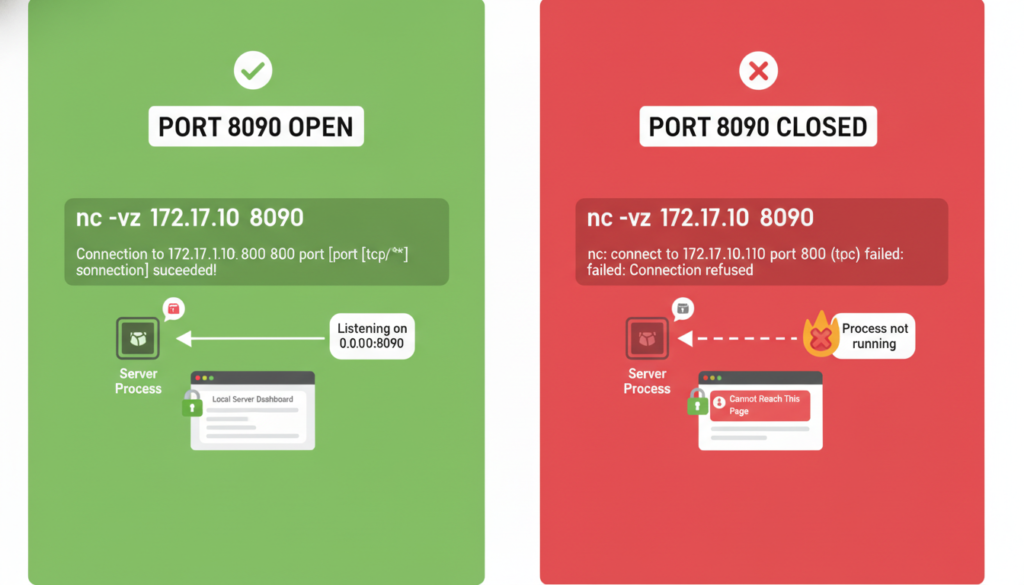
Start with a simple connection test from the same machine that should reach the service.
With curl:
curl -I http://172.17.1.10:8090/
On Linux or macOS, you can also test the TCP connection with:
nc -vz 172.17.1.10 8090
On Windows PowerShell:
Test-NetConnection 172.17.1.10 -Port 8090
If the TCP test succeeds but the web request fails, the issue may be at the HTTP application layer rather than basic network connectivity.
If the TCP test fails, check routing, firewall rules, container networking, service binding, and whether the process is actually listening.
What Should You Check When 172.17.1.10.8090 Does Not Work?
Troubleshooting 172.17.1.10.8090 becomes much easier when you check one layer at a time.
First, verify the IP address. Run ip addr on Linux or ipconfig on Windows and confirm that the network is connected as expected.
Second, check whether the host can be reached. A successful ping is useful evidence, but a failed ping does not always prove the service is unavailable because ICMP can be blocked.
Third, test TCP 8090 directly with nc, Test-NetConnection, or another socket tool.
Fourth, confirm the application is listening on the expected interface. A service bound only to 127.0.0.1 cannot normally be reached through 172.17.1.10.
Fifth, inspect the container or host port mapping. Docker’s -p option maps a host port to a container port, and the two port numbers do not have to match.
Finally, review firewall rules, network namespaces, reverse proxies, and application logs.
Can 172.17.1.10.8090 Work From Another Computer?
It can, but only when the second computer has a route to the private address and the service permits the connection.
A private IPv4 address is not automatically reachable from every machine. For example, a container address on a Docker bridge may be directly reachable from the Docker host and from containers on the same network, while external access may require publishing the port on the host. Docker documents this difference between container networking and published host ports.
This is why a service can work perfectly when tested locally but fail from another workstation.
What Is the Difference Between Container IP and Host IP?
This distinction solves many 172.17.1.10.8090 connection problems.
| Address Type | Example | Purpose |
| Container IP | 172.17.1.10 | Internal address assigned to a container |
| Host IP | 192.168.1.20 | Address used by other devices on a LAN |
| Loopback | 127.0.0.1 | Local machine only |
| Public IP | 203.0.113.10 | Internet-facing example address |
A container can listen on 8090 while the host exposes a different port, such as 8080. In that case, the outside client connects to the host address and published host port, while Docker forwards traffic to the container’s internal port. Docker’s documentation explicitly notes that the container port and published host port can differ.
Why Does Docker Use the 172.17.x.x Range?
Docker’s default network address pools help containers communicate without using public IP addresses. The built-in pool includes 172.17.0.0/16, among other private subnets. This design gives containers isolated addressing while preserving the ability to connect them through Docker networking rules.
This explains why developers may encounter 172.17.1.10.8090 in local development, CI environments, test servers, or containerized applications.
The exact address assigned to a container can change. Do not build a long-term configuration around a container IP unless your environment specifically guarantees that address.
How Can You Find the Service Behind Port 8090?
The best method depends on the operating system and deployment platform.
On Linux, use:
ss -lntp | grep :8090
You can also inspect processes with tools such as lsof:
lsof -i :8090
For Docker, start with:
docker ps
Then inspect the port mapping:
docker port <container-name-or-id>
You can also inspect the network details:
docker inspect <container-name-or-id>
These checks help answer three practical questions: Is something listening? What process owns the port? Is Docker forwarding traffic from the host to the container?
What Does “Connection Refused” Mean?
A connection refused error usually means the target host responded but no service accepted the TCP connection on that port, or a firewall/device actively rejected it.
When 172.17.1.10.8090 returns “connection refused,” verify that the application is running and actually listening on 8090. Also check whether it is bound to the expected IP address rather than localhost only.
A timeout points to a different class of issue. It can indicate routing problems, a dropped packet, a firewall rule, or a service that cannot be reached from your current network.
What Does “No Route to Host” Mean?
“No route to host” is primarily a network-path problem. Your system does not have a usable route to reach the destination, or an intermediate system is preventing the connection.
For 172.17.1.10.8090, check the local routing table, VPN state, subnet configuration, Docker network, virtual machine interface, and host firewall.
On Linux, useful commands include:
ip route
ip addr
On Windows:
route print
ipconfig
These commands help you confirm which network path your computer is using.
Is 172.17.1.10.8090 Safe to Expose Publicly?
A private IP address is not itself an Internet-exposed service, but publishing the associated port can change the security situation significantly.
Docker documents that published ports are exposed through host networking rules, and publishing without a specific host IP can make a service available on all host interfaces. The Docker documentation warns that published ports can become externally accessible and recommends deliberate binding when isolation is required.
Before exposing port 8090, confirm what application is listening, whether authentication is enabled, whether the service should be public, and whether a firewall or reverse proxy should sit in front of it.
Common Reasons 172.17.1.10.8090 Fails
| Problem | What It Usually Means | Best Check |
| Wrong notation | Dot used instead of colon | Try 172.17.1.10:8090 |
| Service stopped | Nothing is listening | Check process/container status |
| Wrong port | App listens elsewhere | Inspect application configuration |
| Localhost binding | App listens only on 127.0.0.1 | Check listening address |
| Docker mapping missing | Container port is not published | Run docker port |
| Firewall block | Traffic is filtered | Review host/network firewall |
| No route | Client cannot reach subnet | Check routing table |
| Wrong container IP | Container address changed | Run docker inspect |
| HTTPS mismatch | TLS expected but HTTP used | Test the correct protocol |
| Reverse proxy rule | Request is routed elsewhere | Inspect proxy configuration |
How Can You Troubleshoot 172.17.1.10.8090 Step by Step?
A clean troubleshooting sequence prevents you from changing several settings at once.
| Step | Action | Result to Look For |
| 1 | Confirm the IP | 172.17.1.10 is the intended target |
| 2 | Confirm the port | Application expects TCP 8090 |
| 3 | Test the host | Network path exists |
| 4 | Test the port | TCP 8090 accepts connections |
| 5 | Test HTTP/HTTPS | Correct protocol responds |
| 6 | Inspect service | Process is listening |
| 7 | Inspect Docker | Port mapping is correct |
| 8 | Check firewall | Connection is allowed |
| 9 | Check logs | Application reports the real error |
| 10 | Retest remotely | Other machines can reach it when required |
This process separates addressing, transport, application, and deployment problems instead of treating every error as a single issue.
Frequently Asked Questions
What is 172.17.1.10.8090?
172.17.1.10.8090 commonly represents the private IP address 172.17.1.10 together with TCP port 8090. For an actual network connection, use the standard host-and-port form 172.17.1.10:8090.
Is 172.17.1.10 a public IP?
No. 172.17.1.10 belongs to the private 172.16.0.0/12 IPv4 range defined for private networks, so it is not a normal public Internet address.
Why do I see 172.17.1.10 in Docker?
Docker uses private address pools that include 172.17.0.0/16, so containerized applications can receive addresses in the 172.17.x.x range.
How do I open 172.17.1.10.8090?
For a web application, try the standard notation http://172.17.1.10:8090/ or the HTTPS equivalent when the service supports TLS. If it does not open, test network reachability and TCP 8090 separately.
What if port 8090 is closed?
Check whether the application is running, whether it listens on TCP 8090, whether it is bound to the correct interface, and whether a firewall or container configuration blocks access. Docker port publishing may also be required when the application runs inside a container.
Can I expose 172.17.1.10.8090 to the Internet?
Not directly as a private IP. You would normally expose a service through a public host address, reverse proxy, VPN, or controlled port forwarding. Before doing so, review authentication, firewall rules, TLS, and the application’s security posture.
Conclusion:
172.17.1.10.8090 is best understood as shorthand for a private IPv4 host plus TCP port 8090. The address is especially relevant in internal networks and containerized environments, but the exact application cannot be identified from the IP and port alone.
When the connection fails, use a disciplined sequence: verify the address, confirm the port, test the route, inspect the listener, review Docker mapping, and then check firewalls and application logs. This approach turns a confusing endpoint into a clear, testable network target.